VMware migration (V2V)
Introduction
Xen Orchestra 5.110 introduced a new migration backend for moving virtual machines from VMware to XCP-ng (V2V). It replaces the old NFS-based method with vectura, a standalone reader of VMware's NFC protocol, delivering better performance and reliability without any VMware-provided library.
The whole process is driven from Xen Orchestra, in Import → VM → From VMware. XO connects to your vCenter or ESXi host, reads the VM disks directly, and imports them into an XCP-ng storage repository:
This guide walks you through the entire migration process:
- Preparing your Xen Orchestra environment
- Preparing your VMware environment
- Running a test migration
- Executing the final cutover
You will also find troubleshooting advice and best practices to maximize speed and minimize downtime.
The V2V import is currently available in the XO 5 interface. The new XO 6 web UI does not expose it yet: even if you use XO 6 daily, switch to the XO 5 interface for the migration itself.
Benefits
In short
The new V2V backend replaces the old approach, and delivers:
- Warm migration for all ESXi versions
- Improved performance
- A cleaner design for easier maintenance
Detailed benefits
Ease of use and compatibility
The new backend only reads allocated blocks, which accelerates transfers, and snapshots have minimal impact on performance. There is no longer any need for temporary NFS storage or remote VSAN targets. Very large disks are handled natively: disks bigger than the 2 TB VHD limit are automatically imported in the QCOW2 format, provided the destination storage repository supports it.
UI improvements
The interface has also seen significant improvements: a progress bar is now visible from the start of the migration, speed metrics are recorded in the VDI, and snapshots are created at each step. This allows you to pause and resume the process safely without creating multiple VMs. The import is cancellable, and the connection settings are remembered by your browser between sessions.
Additionally, UEFI VMs are no longer forced into Secure Boot mode, which resolves previous boot issues.
Recent releases keep improving the workflow: since XO 6.6, a CD-ROM drive present on the source is recreated on the destination VM, and a two-step transfer (a first warm pass followed by a final run) tells you upfront whether the next run will be a full or a delta transfer.
Performance gains
Performance gains can be significant, though results depend on the environment:
-
In the best case, when using VMs with many snapshots or mostly empty disks, migrations can be up to 100 times faster. In our high-performance lab, we measured around 150 MB/s per disk and up to 500 MB/s total, which means an infrastructure with 10 TB of data could be migrated in a single day, with less than five minutes of downtime per VM.
-
In less favorable situations, such as a fully allocated disk with no snapshots and a powered-off VM, improvements are smaller, mainly due to compression between XO and ESXi. In general, the limiting factor is the import speed on the XCP-ng side, which scales well until the storage is saturated. Most of the transfer occurs while the VM is running, so production data remains safe.
Preparing the XO environment
Update Xen Orchestra
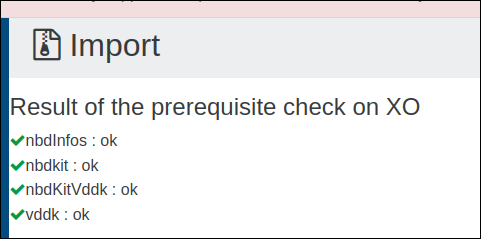
Make sure your Xen Orchestra instance is up to date. The import page includes an automatic check that verifies that vectura, shipped with your Xen Orchestra, runs on this system. Errors must be resolved before the migration can start.
Dependencies
The only dependency is vectura, a single binary that reads VMware disks over the NFC protocol. It
is shipped with Xen Orchestra and runs from there: there is nothing to install, nothing to download
from VMware or Broadcom, and nothing to compile. It needs a Linux x86-64 system with glibc 2.31 or
later, such as Debian 11 or Ubuntu 20.04.
Go to the Import → VM → From VMware section. Once the check passes, a transfer form appears:
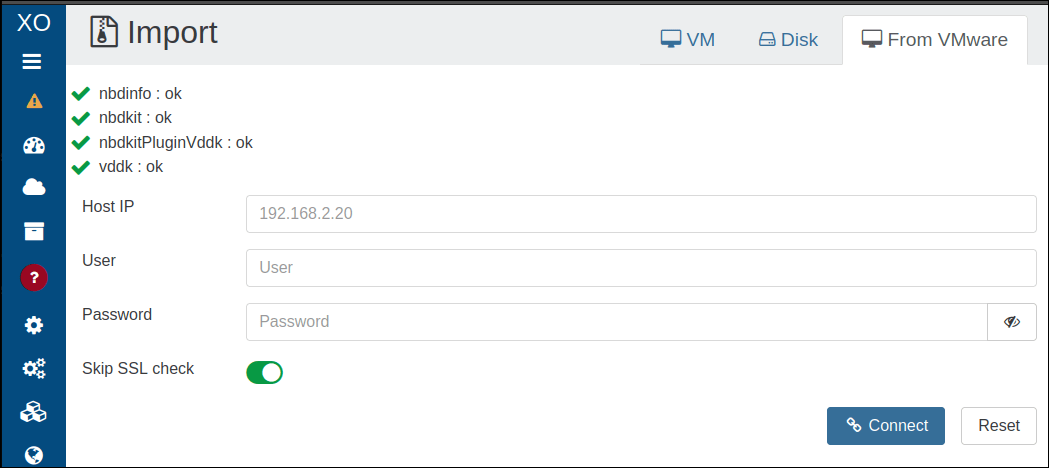
Filling in this form and clicking the Connect button will start the VM import. Make sure your VMware environment is ready first!
Read Preparing the VMware environment to know more.
Preparing the VMware environment
Prerequisites
Before starting the migration, make sure your VMware environment meets the following conditions:
ESXi version
ESXi 7.x and 8.x hosts are supported, directly or through a vCenter. ESXi 6.x hosts are supported too, with two differences:
- The certificate of the NFC data port (902) is confirmed by its SHA-256 with ESXi 7 and later only. On ESXi 6.x, it is checked against the SHA-1 thumbprint that comes with the migration ticket.
- On ESXi 6.x, the reads of a disk go one at a time, so the transfer is slower.
ESXi 6.0 was tested with the host reached directly; ESXi 6.5, 6.7 and 6.x hosts behind a vCenter were not.
Network
XO must be able to connect to the ESXi host, or to the vCenter, through the port running the web UI (default port: 443), and to the ESXi host holding the VM through the NFC data port (default port: 902), even when going through a vCenter. At the time of writing, there is no way to select one network or another, so if possible, keep a single network path from XO to VMware.
VMware disk support
Supported
- Native snapshots are supported. To migrate these:
- Shut them down completely.
- Remove all snapshots before attempting the migration.
- Warm migration is supported. If a warm migration fails:
- Stop the VM.
- Remove any snapshots.
Unofficial support
VSAN configurations have not been fully tested, but they are expected to work.
Unsupported
The following VMware disk types are not supported:
- RDM (Raw Device Mapping)
- Independent disks
- Physical compatibility mode RDMs
- Encrypted virtual disks (unless you have the correct credentials)
Starting with Xen Orchestra 5.110, NFS-based migration and VSAN exports are no longer available.
Step-by-step procedure
Here is the "surefire method" to prepare your VMware environment.
It involves a lot of manual steps, but it lets you detect and fix issues without impacting production.
There is also a "fire-and-forget" approach: launch the migration with the Stop source option enabled, then start the VM once the migration is complete.
This method is only recommended for non-critical VMs, and only after the first few migrations have gone smoothly.
Once the prerequisites are met, follow these steps to prepare the source VM:
Optimize the source VM
- Remove all existing snapshots from the VM.
- Take a new snapshot named
vm starting pointto serve as a baseline.
Clean up VMware
If applicable:
- Uninstall VMware Tools from the VM.
- Verify that the VM can still boot successfully.
Create a clean snapshot
Take another snapshot named vm without tools.
This snapshot captures the state of the VM without VMware-specific components, and will be used for the initial migration.
Initial test migration
Before making the final switch, run a test migration first. This lets you catch any issues before moving to production.
What happens during the transfer
Understanding the warm migration mechanism helps you follow the progress:
- If the source VM is running and has no snapshot, XO automatically takes one, named
[V2V] migration to XCP-ng. - XO creates the destination VM (its name ends with
importing...while the transfer runs) and imports the read-only snapshot chain while the source VM keeps running in production. - A snapshot of the destination VM is taken after this first pass, so the process can be resumed safely without creating duplicate VMs.
- If the
Stop sourceoption is enabled, XO then powers off the source VM in VMware, transfers only the final delta (the blocks written since the snapshot), and takes a finalcomplete import from V2Vsnapshot.
As long as the import is partial (the source VM is still live), XO blocks the destination VM from starting normally, to prevent both copies from running at once.
Perform the first migration attempt
- Start the V2V migration in Xen Orchestra, without enabling the
Stop sourceoption.
This will transfer the VM data up to the snapshot namedvm without tools.tipYou can safely close your browser while the migration runs.
- Monitor the migration progress using one of these methods:
- Check the VM status in Xen Orchestra (its name should show
importing...). - Follow the disk transfer progress indicators.
- Check the VM status in Xen Orchestra (its name should show
Testing the migrated VM
Once the migration is complete:
-
Start the migrated VM copy on your XCP-ng environment. Since the source VM is still running, XO protects the partially synced copy: confirm the force start when prompted.
tip- Use an isolated network to avoid IP conflicts.
- The VM state might be slightly inconsistent since memory and cache data aren't fully synced.
-
Check the following during testing:
- The VM boots up without issues.
- Network connectivity is working properly.
- Xen Tools installs and runs correctly.
-
Document any fixes or adjustments required to stabilize the VM.
Remove the test copy
Once you have finished your checks and taken notes, delete the test VM. This will free up resources and prevent any confusion before the final migration.
Final migration
Run the production migration
When you're ready for the final migration:
- Shut down the source VM completely.
- Start the V2V migration in Xen Orchestra with the
Stop sourceoption enabled.
This ensures the final sync happens while the VM is powered off, and prevents any inconsistencies.
Post-migration tasks
Once the migration is complete:
- Apply any fixes or tweaks you identified during the test migration, and install the Xen guest tools if you have not already.
- The migrated VM includes the snapshots taken during the import, which you can use for rollback. If needed, create additional snapshots before making further changes.
Troubleshooting migration issues
If you encounter problems during migration, try these steps to diagnose and resolve them:
-
Check VMware logs
Look for disk access errors in the VMware logs. These may point to issues with the source storage or VM configuration. -
Update software versions
Keep your Xen Orchestra up to date:vecturaships with it. The prerequisite check on the import page tells whether it runs on this system. -
Remove active snapshots
Make sure no active snapshots remain on the source VM. Snapshots can disrupt migration consistency. -
Verify destination storage
Confirm the XCP-ng storage repository has enough free space for the migrated VM. -
Test network connectivity
Ensure stable network connectivity between the VMware environment, Xen Orchestra, and XCP-ng hosts. -
Retry with cold migration
If warm migration fails, power off the VM, remove all snapshots, and try again.
Need more help?
Booting issues when importing VMs
When migrating a VM from VMware, the system may fail to boot if the required Xen drivers are not pre-installed.
To avoid this, use the dracut utility on the source VM prior to migration. For the specific driver injection procedure, refer to the XCP-ng migration guide.
Boosting migration performance
Migration speed depends on several factors. By identifying bottlenecks and optimizing your setup, you can significantly improve performance.
Common bottlenecks
The V2V migration process can be slowed down by:
- XAPI ingestion speed limits
- Network throughput between Xen Orchestra and VMware
- Network throughput between Xen Orchestra and the XCP-ng host
- ESXi host export speed
Optimizing network performance
For the best results:
Xen Orchestra to XCP-ng connection
- Run Xen Orchestra directly within the target XCP-ng pool to reduce network hops and latency.
- Use the highest available bandwidth, ideally 10Gbps or faster.
Xen Orchestra to VMware connection
Ensure a dedicated 10Gbps+ connection with low latency to your vCenter or ESXi hosts.
Storage recommendations
Use fast SSD storage for both the XCP-ng storage repository and Xen Orchestra's working directory. This speeds up the initial migration and enables smoother live migrations afterward.
CPU and compute resources
If CPU becomes a bottleneck:
- Allocate high-performance CPUs to your Xen Orchestra appliance.
- For large environments, consider parallel migrations using multiple Xen Orchestra instances, but balance this with your network capacity.
Migration strategy
- Schedule migrations during off-peak hours to minimize performance issues.
- If migrating multiple VMs, stagger start times and monitor XAPI performance to avoid bottlenecks.