Backup troubleshooting
This page lists the most common errors you can meet with XO backups, what they mean and how to fix them.
Backup progress
While a backup job is running, you should see activity in the Tasks view (main menu, then Tasks):
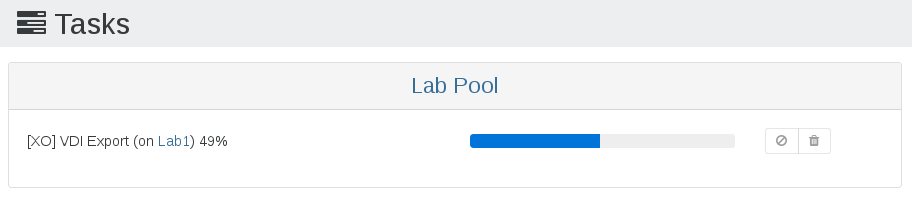
Another good way to check for activity is the XOA VM stats view: the Network graph shows the transfer traffic while data is being moved.
Unexpected key (full) export
Incremental Backup and Incremental Replication usually produce delta exports after the initial seed.
Nevertheless, there are several reasons for XO to trigger a key (full) export instead:
- the configured Full backup interval advanced setting has been reached for this VM
- the Force full backup option is enabled for the current schedule
- a new disk has been added to the VM (only this disk is completely exported)
- the reference snapshot for this backup job is missing on the source VM
- the previously exported backup/replication is missing or corrupted
- XO could not compute a safe delta for a disk (for example a qcow2 disk exported without NBD): it forces a full rather than risking a broken chain
Recent XO releases record the cause of the fallback as a warning in the backup job log, for example can't compute delta <VDI> from <base>, fall back to a full. When a run is unexpectedly full, check the job log first.
VDI chain protection
Backup jobs regularly delete snapshots. Every time a snapshot is deleted, manually or by a backup job, XCP-ng/XenServer needs to coalesce the VDI chain, that is merge the remaining VDIs and base copies. Until that coalesce is done, taking more snapshots on the VM keeps growing the chain.
Coalescing is scheduled and performed by XCP-ng/XenServer itself, not by Xen Orchestra. But XO checks the existing VDI chain before snapshotting, and refuses to create more snapshots than your storage can merge. Xen Orchestra is the only XCP-ng/XenServer backup product offering this protection.
Without this detection, you would eventually hit one of these:
The Snapshot Chain is too Long: the chain contains more than 30 elements, a fixed XCP-ng/XenServer limitSR_BACKEND_FAILURE_44 (insufficient space): the coalesce process couldn't keep up and the storage filled up
So when a run is skipped with the unhealthy VDI chain message, it's a protection mechanism preventing damage to your SR, not a failure: XCP-ng/XenServer should coalesce the chain on its own, and the next run should complete normally.
Just remember this: a coalesce should happen every time a snapshot is removed.
You can read more about this in our dedicated blog post on XCP-ng/XenServer coalesce detection.
Troubleshooting a constant VDI Chain Protection message (XCP-ng/XenServer failure to coalesce)
As explained above, this message can be normal: XCP-ng/XenServer simply needs time to merge old snapshots. However, if you get it repeatedly and the host never seems to coalesce, take the following steps to find out why.
First, check SMlog on the XCP-ng/XenServer host holding the affected storage, looking for VDI corruption or coalesce job failures:
# grep -i exception /var/log/SMlog
# grep -i error /var/log/SMlog
Coalesce jobs can also fail to run if the SR is short on free space. Check the problematic SR: 30% or more free space is generally recommended, depending on VM size. You can confirm this scenario by searching the logs (also look at rotated files such as SMlog.1):
# grep -i coales /var/log/SMlog
To check whether a coalesce job is currently active, look for a VHD process on the host (one of the results will be the grep command itself, ignore it):
# ps axf | grep vhd
If no coalesce job is running and you can't find a reason why XCP-ng/XenServer hasn't started one, you can try to trigger it by rescanning the SR. This is harmless, but doesn't always start a coalesce. Open the problematic SR in the XOA UI and click the "Rescan All Disks" button towards the top right (the refresh circle icon). In the SR's Advanced tab, the "disks needing to be coalesced" list should then shrink progressively.
As a last resort, migrating the VM disks to another storage repository forces a coalesce: moving the VM to another host with its own storage and back will merge the VDI chain and get rid of the VDI Chain Protection message.
SR_BACKEND_FAILURE_44
This message can be triggered by any backup method.
SR_BACKEND_FAILURE_44 (insufficient space) means the Storage Repository (where your VM disks are currently stored) is full. Keep in mind that a snapshot on a thick provisioned SR (the LVM family used by all block devices: iSCSI, HBA, local LVM) consumes the full current disk size. For example, if this kind of SR is more than 50% full and you back up ALL the VM disks on it, you will hit this wall.
Workarounds:
- use a thin provisioned SR (local ext, NFS)
- stay under 50% SR usage, or don't back up all the VMs stored on it
Could not find the base VM
This error historically appeared when the previously replicated VM had been deleted on the target side, breaking the incremental replication chain.
Current XO releases no longer fail in this situation: when the base cannot be found, the job automatically falls back to a full export and continues (see Unexpected key (full) export).
If you still see this error on an older XO version, delete the reference snapshot of this replication job on the source VM, then run the job again to restart the chain from a new full. The snapshot is named [XO Backup <job name>] <VM name> (or XO_DELTA_EXPORT: <name label of target SR> (<UUID of target SR>) on very old versions).
LICENSE_RESTRICTION
LICENSE_RESTRICTION (PCI_device_for_auto_update) appears when you try to back up or snapshot a VM that previously ran on a host with an active commercial XenServer license, but now runs on a host with a free edition of XenServer/Citrix Hypervisor.
To solve it, disable the vendor device on the VM:
# xe vm-param-set has-vendor-device=false uuid=<VM_UUID>
ENOSPC: no space left on device
This message appears when the target backup repository (BR) runs out of free space during a backup.
From your XOA, check the free system space and the free space on the BR:
# xoa check
# df -h
Error: no VMs match this pattern
This happens when a smart backup job doesn't match any VMs. For example: you created a job to back up all running VMs, and no VM is running when the schedule fires. It can also happen if you lost the connection to your pool master, since the VMs are no longer visible to Xen Orchestra.
Edit your job to review the matching VMs, or check that your pool is connected to XOA. Note that the run is reported as skipped rather than failed, so you are notified without the whole sequence being interrupted.
Error: SR_OPERATION_NOT_SUPPORTED
This error can be caused by a removable device (such as USB storage) left attached to the VM you are backing up or snapshotting: detach the device and retry. It can also happen if the VM has a disk using the RAW format, which cannot be snapshotted.
Error: Lock file is already being held
This error appears in the logs of some failed backup runs. It means the VM's folder on the backup repository (BR) is already in use by another process. This could be:
- another backup job
- a merge process on the Virtual Hard Disk (VHD)
To solve this issue, we recommend that you:
- wait until the other backup job or the merge process is done
- make sure your backup repository is not being overworked
Error: HTTP connection has timed out
This error occurs when XO fetches disk data from a host via an HTTP GET request, and the host (the dom0 specifically) stops responding after being asked to expose the disk to export. It's usually a symptom of an overloaded dom0: not enough resources to answer the request, or trouble attaching the disk to expose it.
As a temporary workaround, you can raise the inactivity timeout above the default value (5 minutes) to give the host more time to respond. But you still need to diagnose the root cause of the slow host response, or the issue will come back.
Create the following file:
/etc/xo-server/config.httpInactivityTimeout.toml
Add the following lines:
# XOA Support - Work-around HTTP timeout issue during backups
[xapiOptions]
httpInactivityTimeout = 1800000 # 30 mins
Then restart the xo-server service to apply the change.
Error: Expected values to be strictly equal
This error occurs at the end of the transfer, when XO checks the integrity of the exported VM disk to ensure it's a valid VHD file (both the VHD header and the footer of the received file are verified). The error means the check failed: the file is incomplete, most likely because the export from the dom0 stopped at some point and XO only received a partial disk.
Error: the job is already running
The full message is the job (<id>) is already running: the same job is still busy, typically from the previous scheduled run. This happens when a backup job is scheduled too often, or when a long timeout is configured and a VM export or the transfer to the backup repository (BR) is slow. In either case, adjust the schedule so the job has time to finish (or time out) before the next run. XO treats this as an error on purpose, so you are notified that the planned run was not executed because the previous one wasn't finished.
Error: VDI_IO_ERROR
This error comes directly from your host/dom0, not from XO. XO asked the host to expose a VM disk over HTTP as usual, established the connection and even started the transfer, but at some point the host couldn't read the VM disk any further. This can happen if the VDI is corrupted on the storage or if there's a race condition during snapshots. More rarely, it can also mean your SR is too slow to keep up with the export on top of the live VM traffic.
Error: no XAPI associated to UUID
This message means XO had the UUID of a VM to back up, but couldn't find any matching object when the job ran. The usual cause is that the pool hosting this VM is no longer connected to XO. Double-check that the pool is connected under Settings > Servers, and search for the VM UUID in the Home > VMs search bar. If you can see the VM, run the backup job again and it will work. If you cannot, either the VM was removed or its pool is disconnected.