Incremental backups
NOTE: Formerly known as Continuous Delta backups
Incremental backups export only the blocks that changed since the previous backup, instead of exporting the whole VM every time. After the first complete export (the key backup), every run compares the current VM disks to the previous snapshot (the reference) and only transfers the difference (the delta) to the backup repository (BR).
Introduction
A full backup job exports the complete VM disks at every run, which means large archives and long transfer windows. An incremental backup exports the complete disks once, then only the difference from the previous run:
You can, for example, run the initial key backup during a weekend, then only delta backups every night. This combines the flexibility of snapshots with the safety of full backups:
- deltas are stored on a backup repository (BR), away from the VM storage
- they are small and quick to create
- restores are simple: XO reads the whole chain and rebuilds the VM automatically
- Each disk can be restored, left out, or live mounted: attached in read-only mode to the restored VM straight from the backup, without being copied.
If you want to roll back a VM to a previous state, the cost is only one snapshot on your SR (far less than the rolling snapshot mechanism). And even if you lose your whole SR or VM, XOA will restore the VM entirely and automatically, at any backup date.
You can even use this to back up more often: deltas stay small, and they will always be deltas.
Continuous
Incremental backups in XO are called continuous because after the initial key backup, a full export is never needed again (unless you configure a key backup interval). When the retention is exceeded, instead of exporting a new full, XO merges the oldest delta into the full, directly on the BR:
The merge is performed on the files stored on the BR: the hosts are not involved and no data is re-exported from the pool.
Create an incremental backup
In the Backup view, create a new VM backup job and enable the Delta Backup mode: this is the incremental mode (the XO 5 interface still uses the historical Delta Backup name for this toggle). Everything else (VM selection, schedules, retention, choice of backup repository) works like a normal backup job.
Snapshots
Incremental backups rely on a reference snapshot kept on the VM. Unlike other job types, which delete their snapshot once the export is done, an incremental job always keeps the latest snapshot of every VM in the job and uses it as the reference for the next delta. Do not delete these snapshots!
If keeping the snapshot data on the SR is a problem for you, see Purge snapshot data (CBT).
Incremental backup initial seed
If you don't want to do an initial full directly toward the destination, you can create a local delta backup first, then transfer the files to your destination.
Then, only the diff will be sent.
- create an incremental backup job to the first backup repository (BR)
- run the backup (full)
- edit the job to target the other repository
- copy files from the first repository to the other one
- run the backup (incremental)
Key backup interval
This advanced setting defines the number of backups after which a key backup is triggered, ie the maximum length of a delta chain.
For example, with a value of 2, the first two backups will be a key and a delta, and the third will start a new chain with a full backup.
This is important because on rare occasions a backup can be corrupted, and in the case of incremental backups, this corruption might impact all the following backups in the chain. Occasionally performing a full backup limits how far a corrupted delta backup can propagate.
The value to use depends on your storage constraints and the frequency of your backups, but a value of 20 is a good start.
Migrating the VDIs of a VM to another SR will trigger a full export at the next backup run.
NBD-enabled Backups
You have the option to use the NBD network protocol for data transfer instead of the VHD export handler exposed by the XAPI. NBD-enabled backups are generally faster, as the load on the Dom0 is reduced.
Network requirements
NBD is a direct connection from the machine running the backup (XOA, or the xo-proxy the job is delegated to) to the host currently running the VM — not to the pool master, and not through XAPI. The backup runner must therefore have at least one network that meets all of these conditions:
- NBD is enabled on it. Select the pool, navigate to the Network tab and enable NBD on the network. Data is then transferred over an encrypted (TLS) NBD connection.
- It is routable from the backup runner to the host running the VM. Routing and firewalling must allow the runner to open a connection to that host on this network.
NBD only uses IPv4. An IPv6-only network cannot be used for the transfer.

Because a VM can be started on — or migrated to — any host of the pool, every host that may run a backed-up VM has to meet these conditions. Otherwise NBD will work for some VMs and silently fall back for others, depending on where they run at backup time.
If a Backup network is configured for the pool (Pool view → Advanced tab), only that network is used for every VM in the pool. NBD must be enabled on that network, and all three conditions above must be met. Any other NBD-enabled network in the pool is ignored, and the job falls back to the VHD export handler.
Enable NBD in the backup job
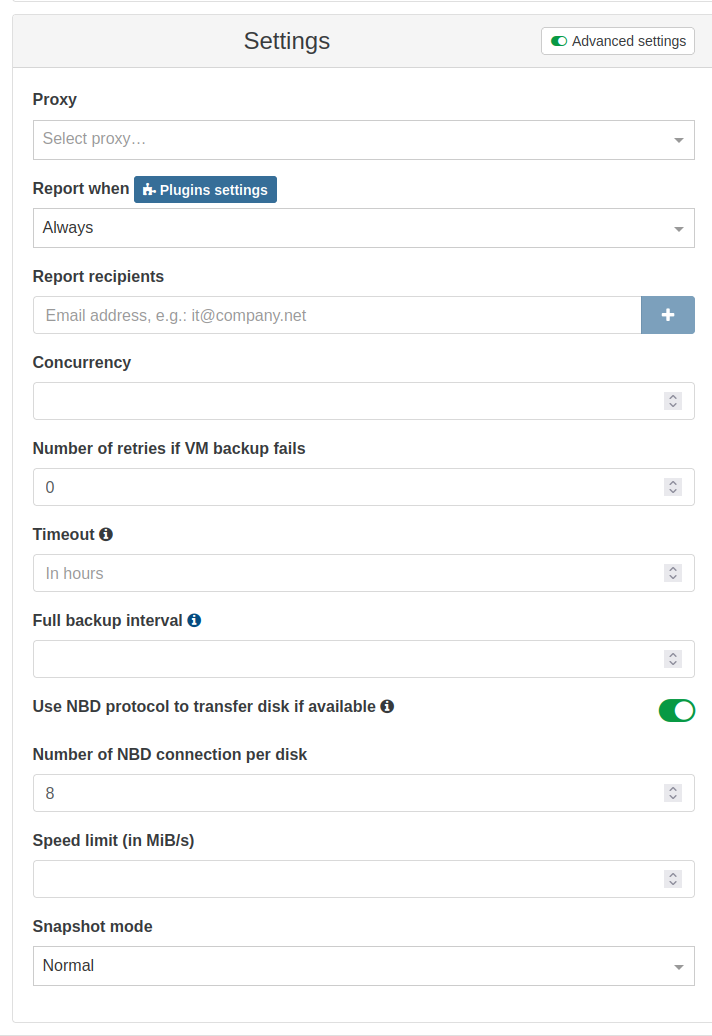
When creating or editing an incremental backup or replication job for this pool, you can then enable Use NBD to transfer disk in the Advanced settings, and raise the number of NBD connections per disk to parallelize the transfer:
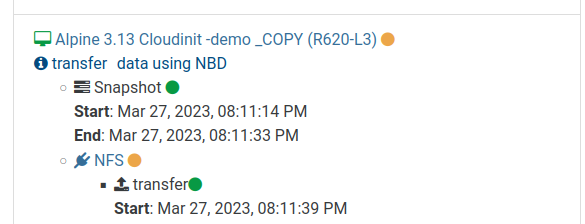
After the job has run, always verify in the backup log that NBD was actually used for the transfer:
Incremental backups of qcow2 disks require NBD. qcow2 disks are used for VDIs larger than 2 TiB and on storage repositories that store their disks in the qcow2 format.
Enabling Use NBD to transfer disk in the job's Advanced settings is not sufficient on its own: the network requirements must also be satisfied on every pool involved. If these conditions are not met, the job falls back with a warning to a non-NBD transfer: no qcow2 delta can be produced, so each run transfers a full backup instead.
Always confirm NBD was actually used in the backup log after the first run.
To learn more about the evolution of this feature across various XO releases, check out our blog posts for versions 5.76, 5.81, 5.82, and 5.86.
Purge snapshot data (CBT)
By default, the reference snapshot kept for an incremental backup stores its data on the SR. XO can instead use the Changed Block Tracking (CBT) feature of XCP-ng and XenServer to discard that data: enable Purge snapshot data when using CBT in the Advanced settings of the backup job.
When this setting is enabled:
- XO automatically enables CBT on all the disks of the VM.
- After each successful transfer, the data of the reference snapshot is destroyed: only a small CBT metadata VDI remains on the SR.
- On the next run, XO uses this metadata to know exactly which blocks changed, and reads them from the active disk over NBD.
The benefit: the reference snapshot no longer uses any notable space on the SR, which is especially valuable on thick-provisioned storage where a snapshot can reserve the full size of the disk.
Requirements and limitations:
- NBD is required: Use NBD to transfer disk must be enabled in the job, and the network requirements must be met.
- It is not compatible with rolling snapshots: the job's snapshot retention must be 0.
- Since the purged snapshot only keeps metadata, it is not shown in the UI and can't be used for a rollback or a differential restore.
- Reverting to an XO version without CBT support will trigger a full backup on the next run.
When using the purge snapshot data function, you might occasionally run into an issue where full backups are transferred on each run.
To prevent this:
- Migrate the disk to another storage. This will reset the disk state.
- Disable purge snapshot data on the backup.
Understanding large deltas
Sometimes, you might notice that incremental backups are surprisingly large, almost as big as a full backup. This usually happens because of how block-level backups work: even small changes at the block level are included, even if the files themselves haven't changed much.
Common causes
- Log rotation: Small but frequent writes happening in different places.
- System daemons or temp files: Background processes that write data regularly.
- Random disk writes: Applications or databases writing data across the disk.
- Filesystem maintenance: Some filesystems move blocks internally, for instance during defragmentation.
- Memory pressure and paging: When a VM is low on RAM, it may write heavily to disk (a process known as memory paging), which increases block-level changes.
Tips to keep deltas small
- Use tools like
iotopordstatto monitor disk write activity inside the VM. - Look out for cron jobs, log rotations, or background tasks that might be active during backup times.
- Ensure your VM has enough memory to prevent excessive paging.
- Create a separated disk with
[NOBAK]in its name to handle temporary files. This disk won't be transferred. To know more on excluding disks from backup jobs, check out the Exclude disks section. - For disks larger than 2 TB, store backups on a backup repository in block mode.
- For qcow2 disks, enable NBD: without it, each incremental run falls back to a full backup.