Model Context Protocol (MCP)
What is MCP?
MCP (Model Context Protocol) is an open standard that lets AI assistants interact with external tools and data sources. Think of it as a universal adapter between AI assistants (like Claude) and your infrastructure.
With the @xen-orchestra/mcp package, your AI assistant can directly query your Xen Orchestra instance and answer questions about your virtualization infrastructure in natural language.
Why MCP with Xen Orchestra?
MCP enables new ways to interact with your infrastructure:
- Natural language queries: ask "How many VMs are running?" instead of navigating dashboards
- AI-assisted monitoring: get instant summaries of your infrastructure state
- Quick diagnostics: ask about specific VMs, hosts, or pools without leaving your conversation
- Documentation at your fingertips: search the XO documentation directly from the assistant
All operations are read-only by default, ensuring safe interaction with your production environment. Write operations can be enabled explicitly, see Write operations.
Installation
Prerequisites
- Node.js 20 or later
- A Xen Orchestra instance, version 6.5 or later, with REST API enabled
- An AI assistant that supports MCP (Claude Desktop, Claude Code, etc.)
The MCP server requires Xen Orchestra 6.5 or later. On an older XO it stops at startup with an error such as Unable to verify MCP status (HTTP 404). Upgrade your Xen Orchestra to use it.
Install the MCP server
# npm install -g @xen-orchestra/mcp
Or run it directly without installing:
# npx @xen-orchestra/mcp
Configure authentication
The MCP server connects to Xen Orchestra via the REST API. Two authentication modes are supported: token (recommended) or username/password.
| Variable | Required | Description |
|---|---|---|
XO_URL | Yes | Xen Orchestra server URL (e.g. https://xo.example.com) |
XO_TOKEN | If no username/password | Authentication token |
XO_USERNAME | If no token | XO user with admin privileges |
XO_PASSWORD | If no token | XO password |
XO_MCP_ENABLE_ACTIONS | No | Set to 1 to expose write/destructive operations (see Write operations) |
To generate a token, go to the XO user page (/user) or run xo-cli create-token. If both XO_TOKEN and XO_USERNAME/XO_PASSWORD are set, token authentication takes priority.
Only admin users can currently use the REST API. See REST API authentication for details.
Configure your AI assistant
Claude Desktop
Add the following to your Claude Desktop configuration file (~/.config/claude-desktop/config.json on Linux, ~/Library/Application Support/Claude/claude_desktop_config.json on macOS):
Using a token (recommended):
{
  "mcpServers": {
    "xo": {
      "command": "npx",
      "args": ["@xen-orchestra/mcp"],
      "env": {
        "XO_URL": "https://your-xo-server",
        "XO_TOKEN": "your-token"
      }
    }
  }
}
Using username/password:
{
  "mcpServers": {
    "xo": {
      "command": "npx",
      "args": ["@xen-orchestra/mcp"],
      "env": {
        "XO_URL": "https://your-xo-server",
        "XO_USERNAME": "admin@example.com",
        "XO_PASSWORD": "your-password"
      }
    }
  }
}
Claude Code
# Using a token (recommended)
# claude mcp add xo \
-e XO_URL=https://your-xo-server \
-e XO_TOKEN=your-token \
-- npx @xen-orchestra/mcp
To use username/password instead, replace the -e XO_TOKEN=… line with -e XO_USERNAME=… and -e XO_PASSWORD=….
Other MCP-compatible clients
Run the MCP server with the environment variables set:
# XO_URL=https://your-xo-server \
XO_TOKEN=your-token \
npx @xen-orchestra/mcp
The server communicates via stdio using the MCP protocol (JSON-RPC), compatible with any MCP client.
Multiple XO instances
To manage several XO servers from the same assistant, add one entry per instance with a different name:
{
  "mcpServers": {
    "xo-production": {
      "command": "npx",
      "args": ["@xen-orchestra/mcp"],
      "env": {
        "XO_URL": "https://xo-production.example.com",
        "XO_TOKEN": "prod-token"
      }
    },
    "xo-staging": {
      "command": "npx",
      "args": ["@xen-orchestra/mcp"],
      "env": {
        "XO_URL": "https://xo-staging.example.com",
        "XO_TOKEN": "staging-token"
      }
    }
  }
}
Each entry starts its own process with its own credentials. The assistant gets a separate set of tools per instance, so you can ask about a specific environment by name ("list running VMs on xo-production").
Pick descriptive names (xo-production, xo-dr-site, ...) so the assistant knows which instance you're referring to.
Behind a corporate proxy
The MCP server respects HTTP_PROXY, HTTPS_PROXY, and NO_PROXY. This matters in enterprise networks: your AI assistant may need an outbound proxy to reach the public internet, but your XOA is internal and must be reached directly. Without NO_PROXY, internal traffic gets sent through the proxy and rejected.
NO_PROXY takes a comma-separated list of hostnames that bypass the proxy: an exact host (xoa.internal.example.com), a suffix wildcard (.example.com or *.example.com, which matches subdomains but not the bare domain, so list both if needed), or * alone to bypass everything. CIDR ranges are not supported. Proxy credentials in the URL (http://user:pass@proxy:3128) work with Basic auth only; NTLM/Kerberos proxies need a sidecar like cntlm.
Example for Claude Desktop, with a corporate proxy and a XOA on the internal network:
{
  "mcpServers": {
    "xo": {
      "command": "npx",
      "args": ["@xen-orchestra/mcp"],
      "env": {
        "XO_URL": "https://xoa.internal.example.com",
        "XO_TOKEN": "your-token",
        "HTTPS_PROXY": "http://proxy.corp.example:3128",
        "NO_PROXY": "xoa.internal.example.com"
      }
    }
  }
}
NO_PROXY on its own does nothing. If you set it without HTTP_PROXY or HTTPS_PROXY, the MCP logs a warning at startup. A malformed proxy URL is reported on stderr but does not crash the server; it falls back to direct connections.
Disabling MCP globally
Sometimes you need to shut MCP off across the board: during an incident, while reviewing an internal policy, or simply to keep AI access turned off until you've decided who should have it. The xo-server config has a flag for that:
[mcp]
enabled = false
Restart xo-server and the change takes effect immediately:
- The
@xen-orchestra/mcpbinary refuses to start. It printsMCP disabled by adminon stderr and exits with code 1. - Any MCP client already running gets a
503with{ "error": "mcp_disabled" }on its next request, so sessions shut down without leaving stale connections on the server.
The default is enabled = true; legacy configs without an [mcp] section behave the same way. Flip the value, restart, done: no other state to clean up.
The kill-switch keys off the X-XO-Client: mcp header the official binary sends. A third-party MCP client, or an older @xen-orchestra/mcp version that predates this header, will bypass the gate. Pin to a recent release if you rely on the kill-switch as a hard control.
How it works
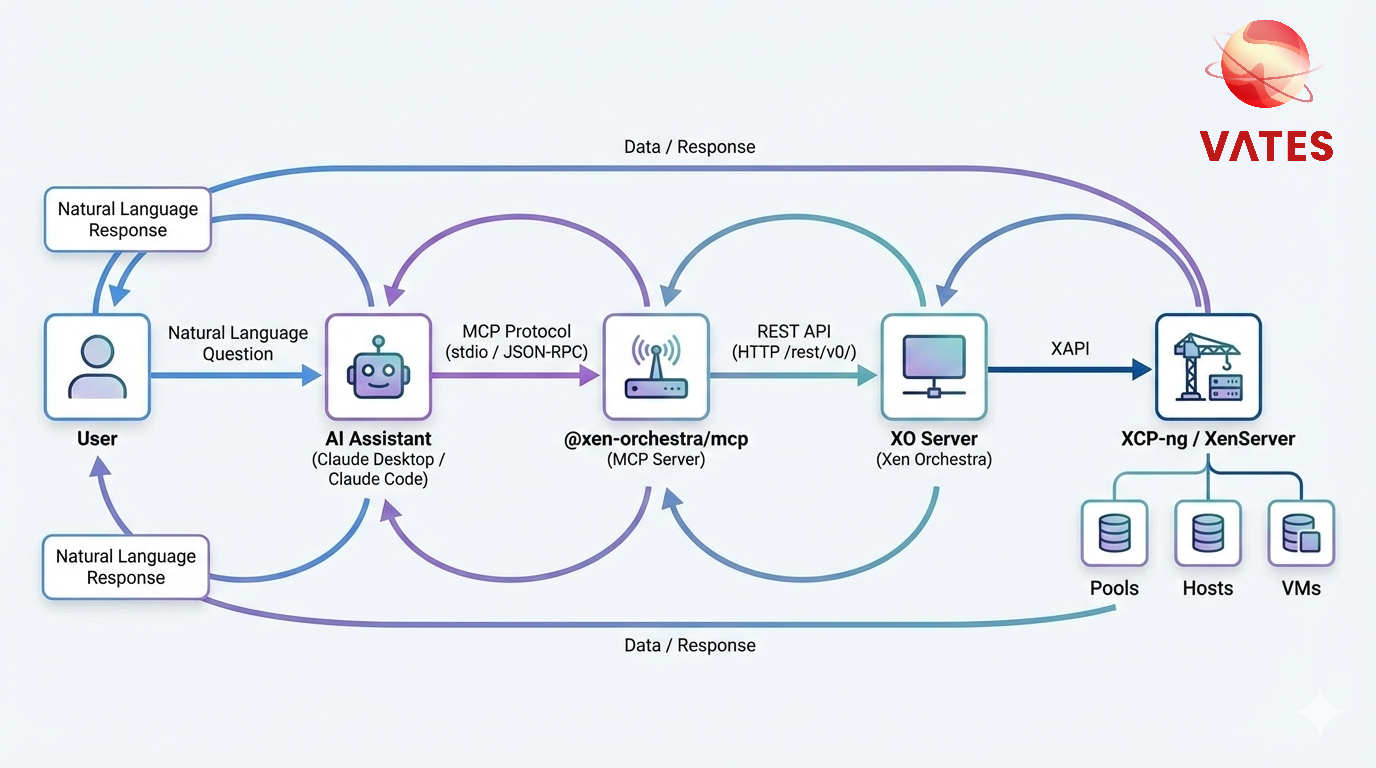
- On startup, the MCP server fetches the OpenAPI spec from your XO instance (
/rest/v0/docs/swagger.json) and generates one tool per resource domain. - You ask a question in natural language to your AI assistant.
- The assistant picks a tool (e.g.
pools_query) and chooses anoperation(e.g.GetPools,GetPoolDashboard). - The MCP server calls the corresponding XO REST endpoint and returns a markdown-formatted response.
Because the tool surface is generated from the live OpenAPI spec, it always reflects the XO version you're connecting to: new endpoints become available automatically as XO evolves.
Capabilities
The server exposes:
- Three utility tools, always present:
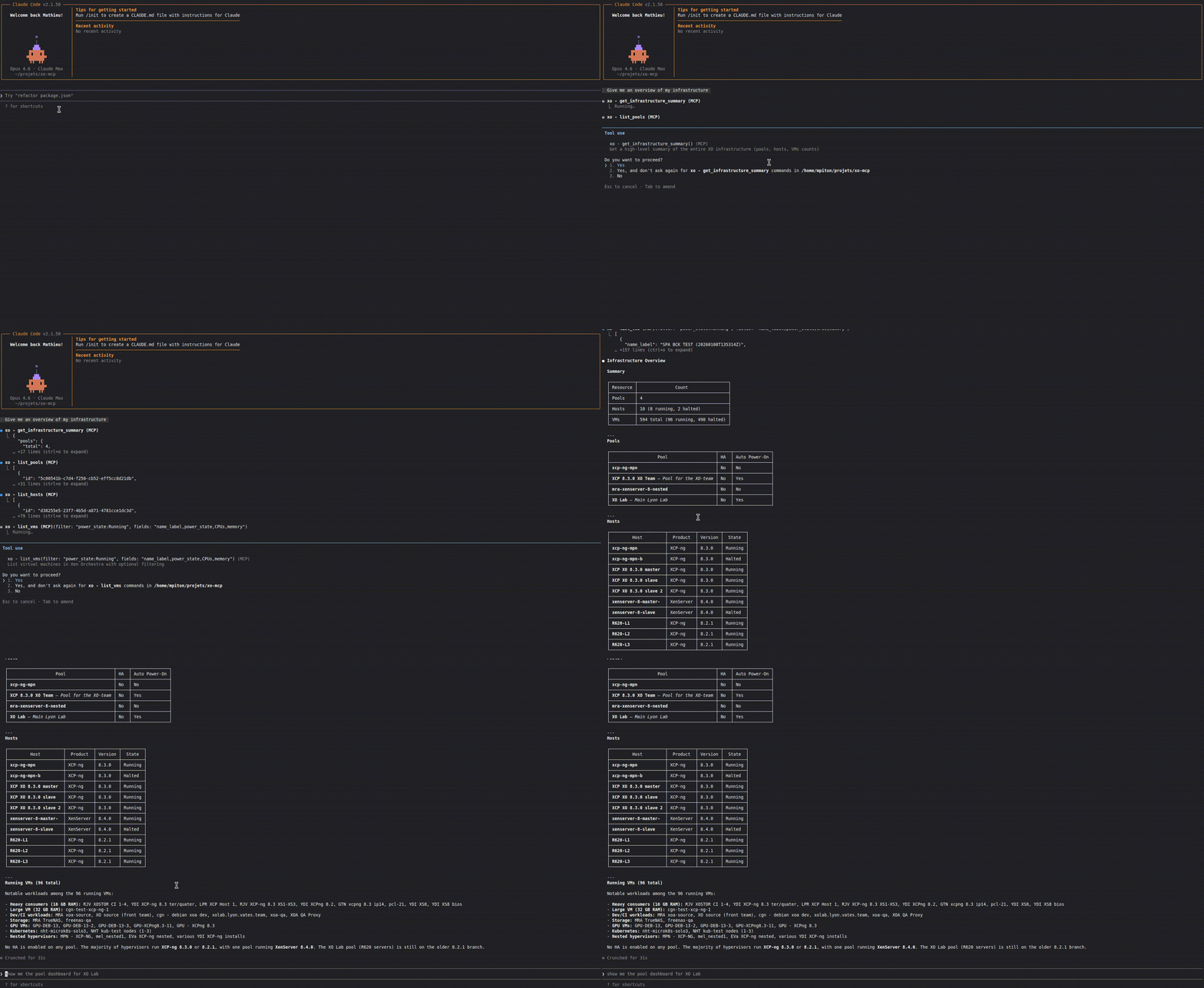
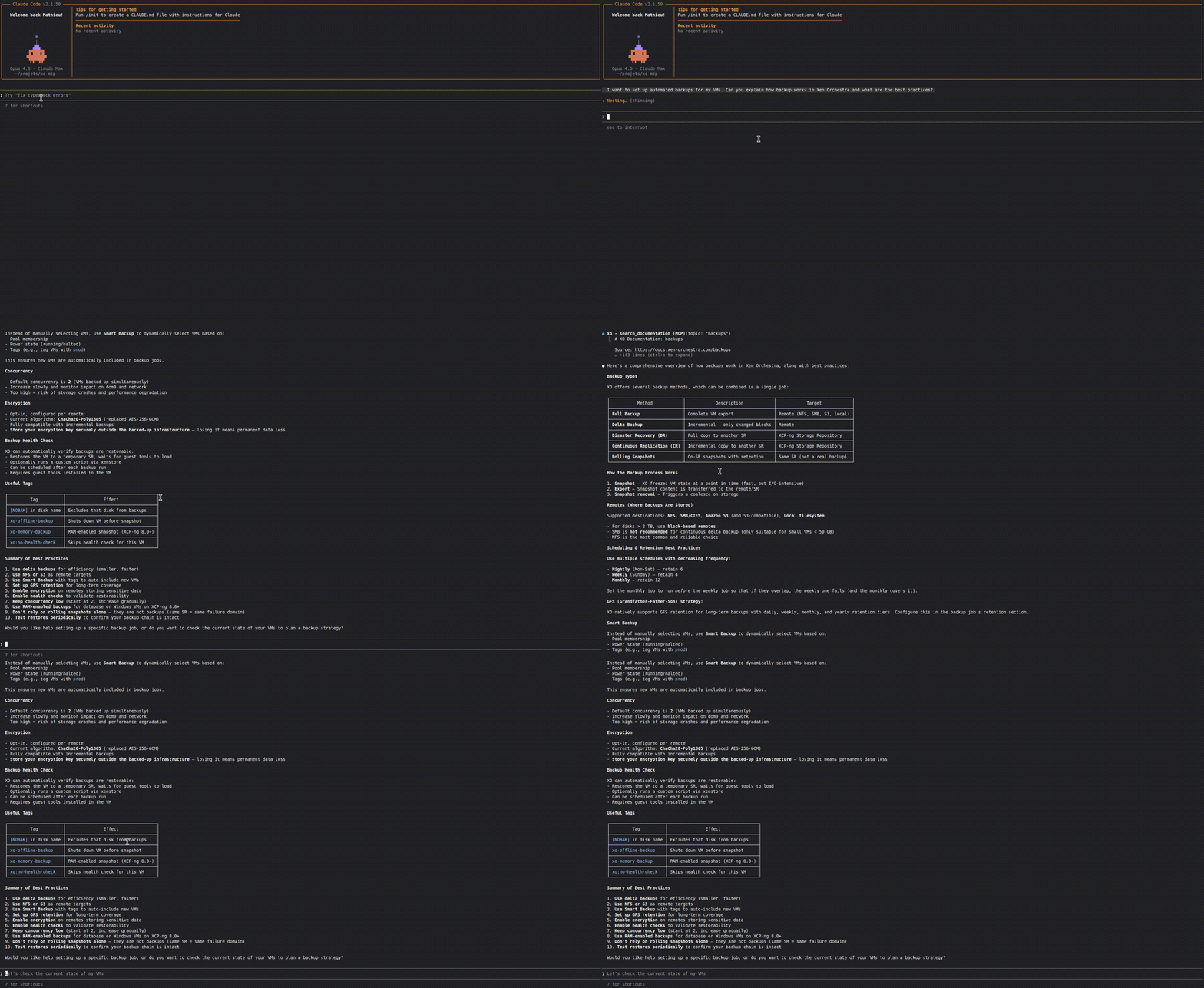
check_connection(validate your setup),get_infrastructure_summary(aggregate pools, hosts and VMs into a single overview), andsearch_documentation(look up the XO documentation by topic). - One
{domain}_querytool per REST resource domain, generated from the live spec: pools, hosts, VMs, storage (SRs, VDIs), network, backup jobs and logs, users, tasks, alarms, and more. All query tools share the same arguments:operation(the OpenAPIoperationIdto invoke),id, an optionalfilterexpression,fields, andlimit. - A built-in prompt,
infrastructure-overview, which turns the infrastructure summary into a readable report.
Stats endpoints and binary downloads (.xva, .vhd, ...) are deliberately not exposed: their payloads are unsuitable for LLM context. Use the REST API directly when you need them.
The exact tool list depends on your XO version, since it is generated at startup. For the complete, current reference (tool arguments, deny list, all environment variables), see the @xen-orchestra/mcp README, which is the source of truth.
Example questions:
- "List all my pools"
- "Show the dashboard for pool X"
- "How many VMs are currently running?"
- "List user VDIs larger than 100GB"
Write operations
By default, the MCP server only exposes read-only tools. Set XO_MCP_ENABLE_ACTIONS=1 in the server environment to also expose {domain}_action tools covering POST/PUT/PATCH/DELETE operations (start, stop or delete a VM, and so on).
Every action runs as a two-step handshake: the first call returns a preview of the request and a one-shot confirm_token; the assistant must call back with that token within 5 minutes to execute. A blunt "yes, delete everything" can't go through in one shot, so an accidental or hallucinated call stops at the preview. Use XO_MCP_DENY_LIST (a comma-separated list of operationIds, e.g. DeleteVm,HardShutdownVm) to drop specific operations from the surface entirely.
Enabling XO_MCP_ENABLE_ACTIONS lets the assistant mutate your infrastructure. The confirm-token handshake means no action runs without a second, explicit call, but it's still write access. Keep the default read-only mode unless you have a specific need.
Example Conversations
Infrastructure overview:
Searching documentation:
Troubleshooting
Verify that XO_URL is correct and includes the protocol (https:// or http://). Make sure the XO server is reachable from the machine running the MCP server.
If using token authentication, check that XO_TOKEN is valid: the token may have expired or been revoked. If using username/password, check XO_USERNAME and XO_PASSWORD. Only admin users can currently access the REST API.
The MCP server has a 30-second timeout for API requests. If you experience timeouts, check network connectivity between the MCP server and your XO instance.
If your AI assistant injects HTTPS_PROXY into the MCP process and your XOA lives on the internal network, the proxy may silently drop or reject the requests. Add the XOA hostname to NO_PROXY so the traffic stays direct. See Behind a corporate proxy.
XO_URL is always required. You must also set either XO_TOKEN or both XO_USERNAME and XO_PASSWORD. When using Claude Desktop, make sure they are in the env section of the MCP server configuration.
The xo-server administrator has set [mcp] enabled = false in the server config. The binary won't start until that flag is removed or set back to true. See Disabling MCP globally for the server-side details.
Your Xen Orchestra is older than 6.5. Upgrade XO to 6.5 or later to use the MCP server, see Prerequisites.