Getting started
XO 6 is the new generation of the Xen Orchestra web interface. Since its first official release, it is the default interface of your Xen Orchestra: log in as usual and you land in XO 6.
XO 6 currently requires an administrator account: other users are redirected to XO 5 for now. XO 6 and XO 5 run side by side on the same Xen Orchestra and manage the same infrastructure. You can switch to XO 5 at any time with the XO 5 link in the top-right corner, and some advanced operations open directly in XO 5 (they are clearly marked with an external-link icon). See XO 6 vs. XO 5 for the current split.
Accessing XO 6
Open your Xen Orchestra URL in a browser and log in with your usual credentials. XO 6 is served as the default interface, and it is also directly reachable at https://your-xo/v6/.
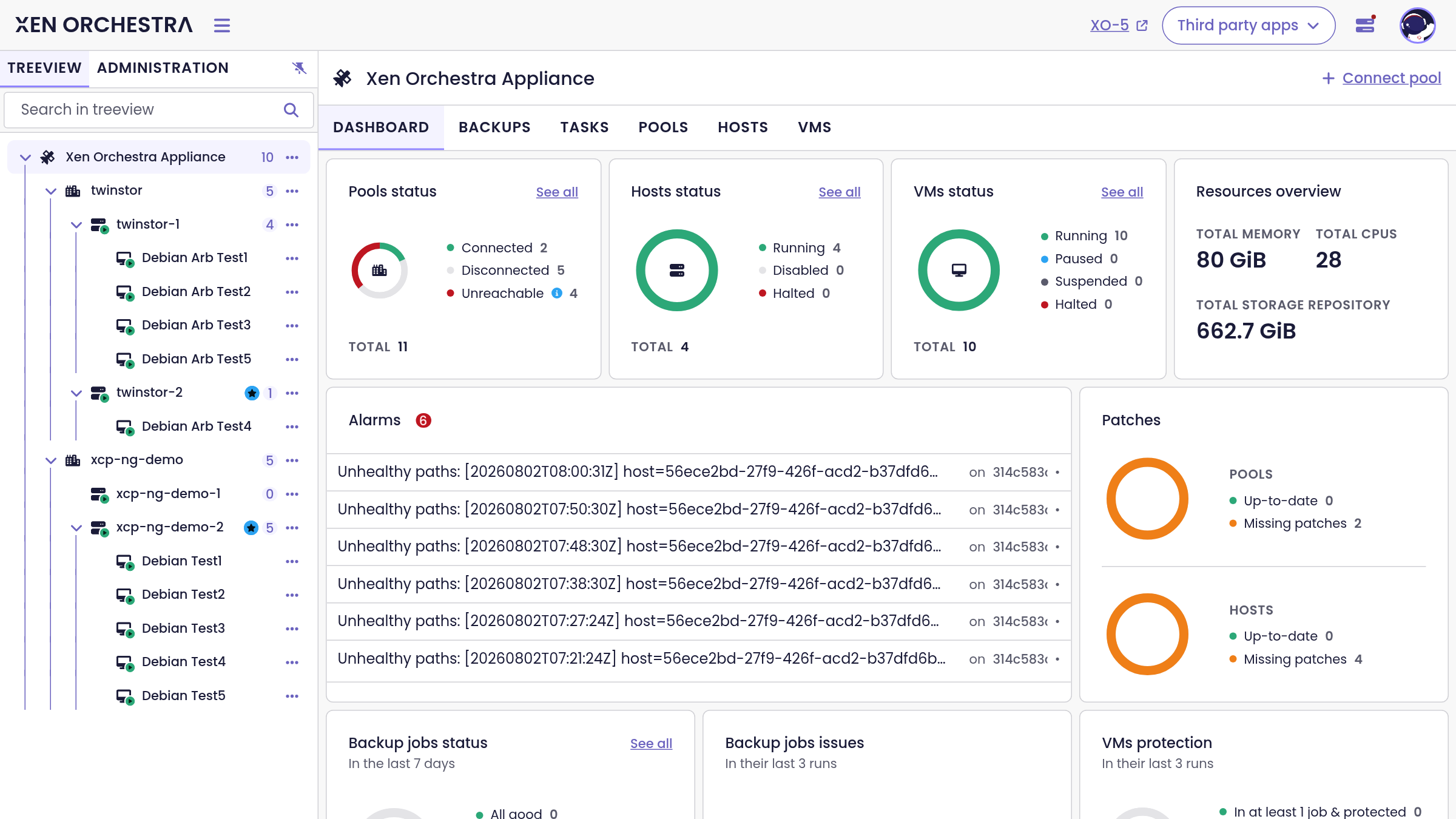
On first login, a welcome message summarizes the state of the project: XO 6 is an official release under active development, new capabilities land continuously, and everything you do not find yet in XO 6 is one click away in XO 5.
The layout
The interface is built around three areas:
- The tree view, on the left: your whole infrastructure as a tree, from your Xen Orchestra down to every pool, host and VM. It is the main way to navigate.
- The main area: the page of the selected object, organized in tabs (dashboard, console, networks, tasks and so on, depending on the object).
- The side panel, on the right of tables: click the eye icon on a row to inspect an object without leaving the list.
The top bar carries the XO 5 switch, the Third party apps menu (with the EasyVirt DC Scope and DC NetScope integrations), a quick view of the last 24 hours of tasks, and your account menu.
Make it yours
The Settings page (from the account menu) lets you pick a light, dark or automatic color mode, one of five interface themes (default, nord, solarized, dracula, monokai), and your language: the interface is translated into 21 languages, with community translations managed on Weblate.
Navigating with the tree view
The tree view lists every connected pool with its hosts and VMs, each with a live status icon. Click any object to open its page. The counter next to a host or pool tells you how many VMs live there at a glance.
The search field filters the whole tree as you type, which is the fastest way to reach an object in a large infrastructure:
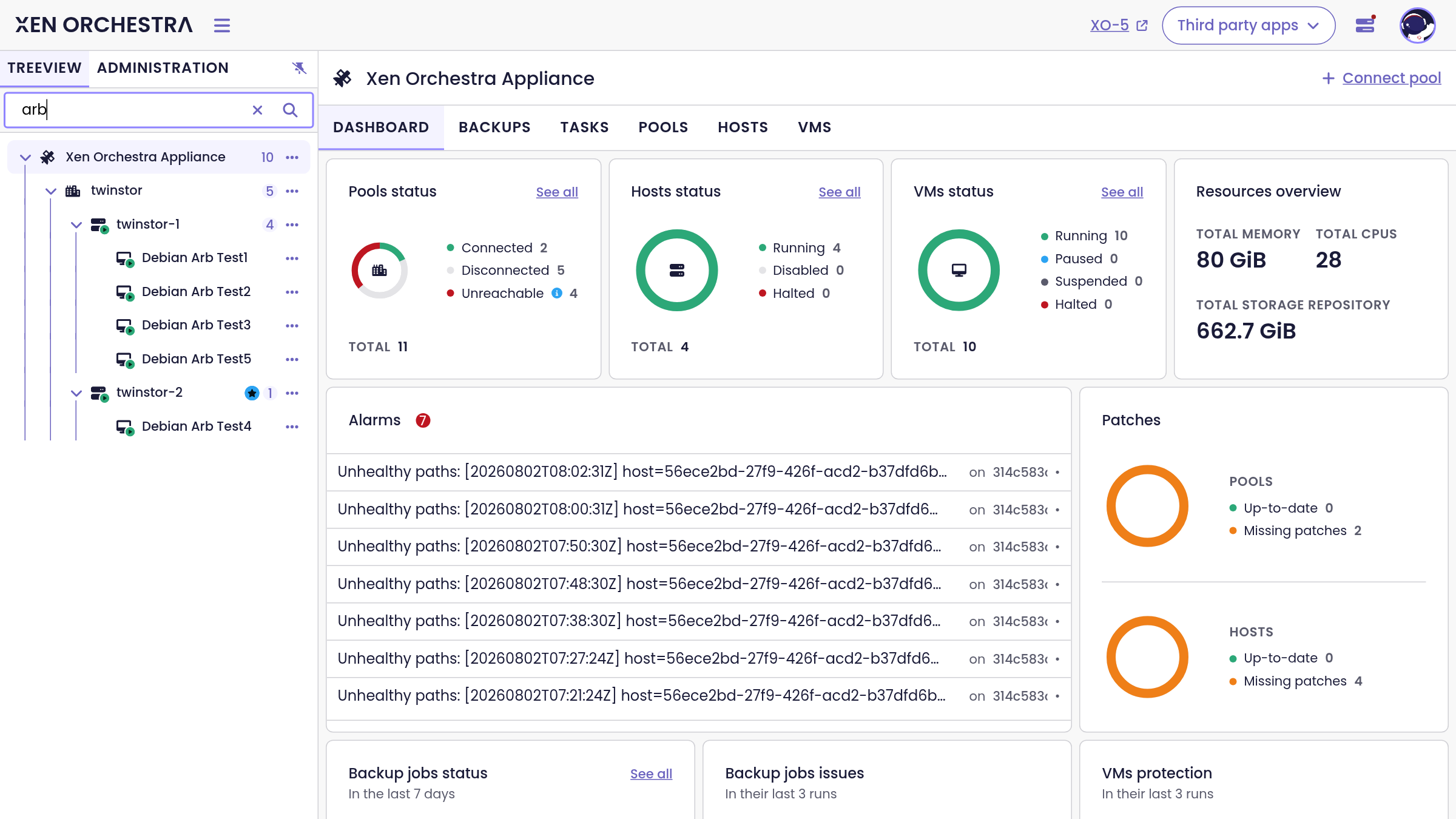
Next to the tree view, the Administration tab of the sidebar gives access to user management (see Users and administration).
Your first tour
A good way to discover XO 6 in a few minutes:
- Start on the dashboard: it aggregates the health of everything Xen Orchestra manages, including pool, host and VM status, resource totals, missing patches, alarms and backup health. See Core concepts.
- Click a pool in the tree view: same idea, scoped to the pool, with its networks, storage and hosts one tab away.
- Click a VM: quick info, live console, snapshots, backup protection status, all in tabs.
- Open the Tasks tab at any level: every operation, API call and authentication is tracked there.
When something is not available in XO 6 yet, follow the marked links to XO 5 and finish the operation there: both interfaces act on the same objects instantly.