Management
This page walks through day-to-day management in XO 6: pools, hosts and VMs. For the general layout and navigation, start with Getting started.
Pools
A pool page opens on its dashboard: host and VM status, alarms, the list of missing patches with their versions, storage and RAM usage per host, and CPU provisioning at a glance.
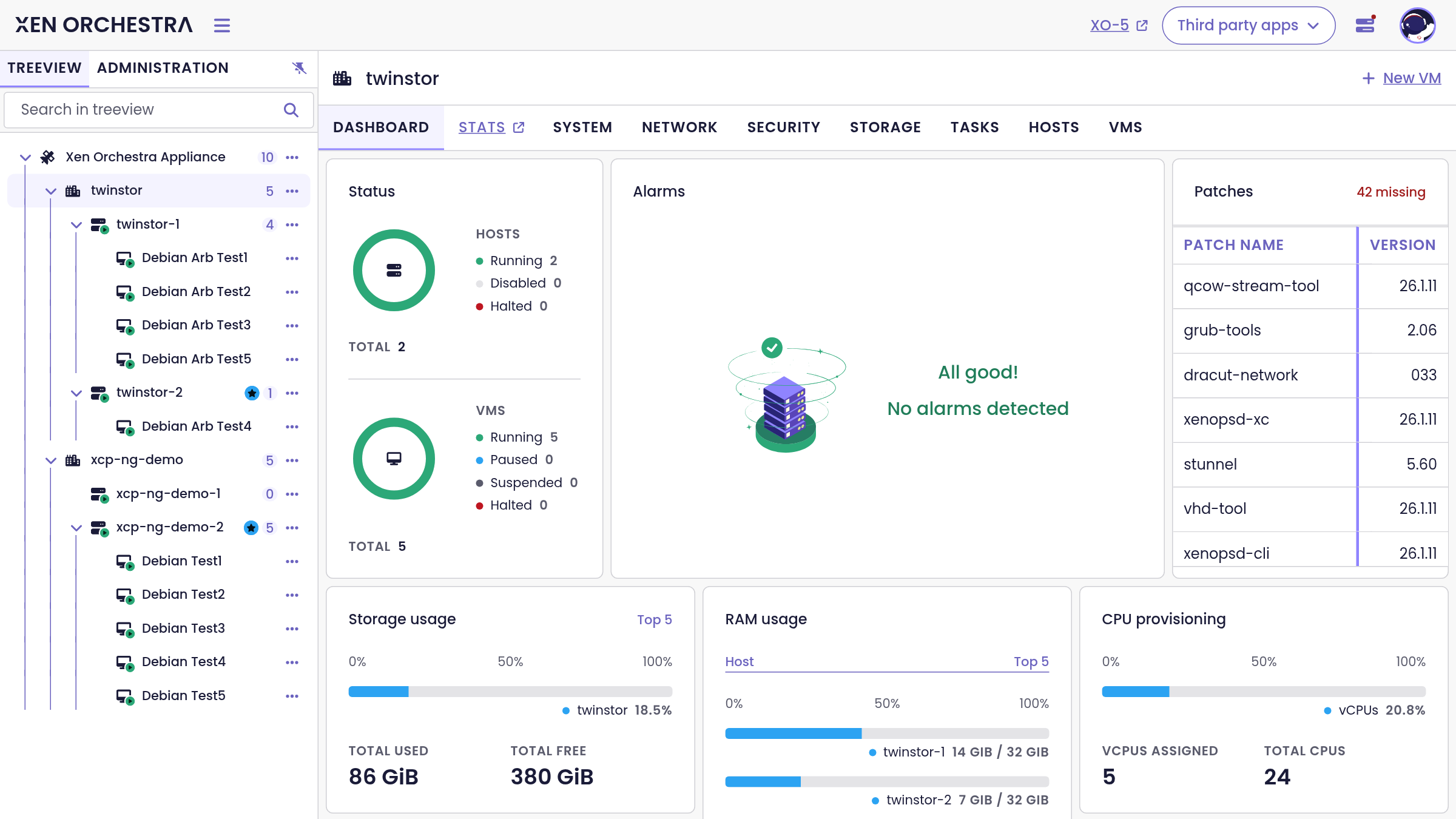
The other tabs cover the pool's building blocks:
- System: identity and properties of the pool.
- Network: pool-wide networks and host internal networks, each with a query builder and a details side panel. You can create networks (including bonded and host internal networks) and delete them; editing an existing network opens XO 5.
- Security: security-related settings of the pool.
- Storage: the pool's storage repositories, with connect, disconnect and delete actions (SR creation opens XO 5).
- Tasks: what happened on this pool.
- Hosts and VMs: filtered lists scoped to this pool.
From a pool you can also connect a new pool to Xen Orchestra (Connect pool, from the top level) and create a VM (New VM).
Hosts
The host dashboard shows the quick info of the server: XCP-ng version, hardware model, sockets and RAM, whether it is the primary host, plus alarms and its missing patches.
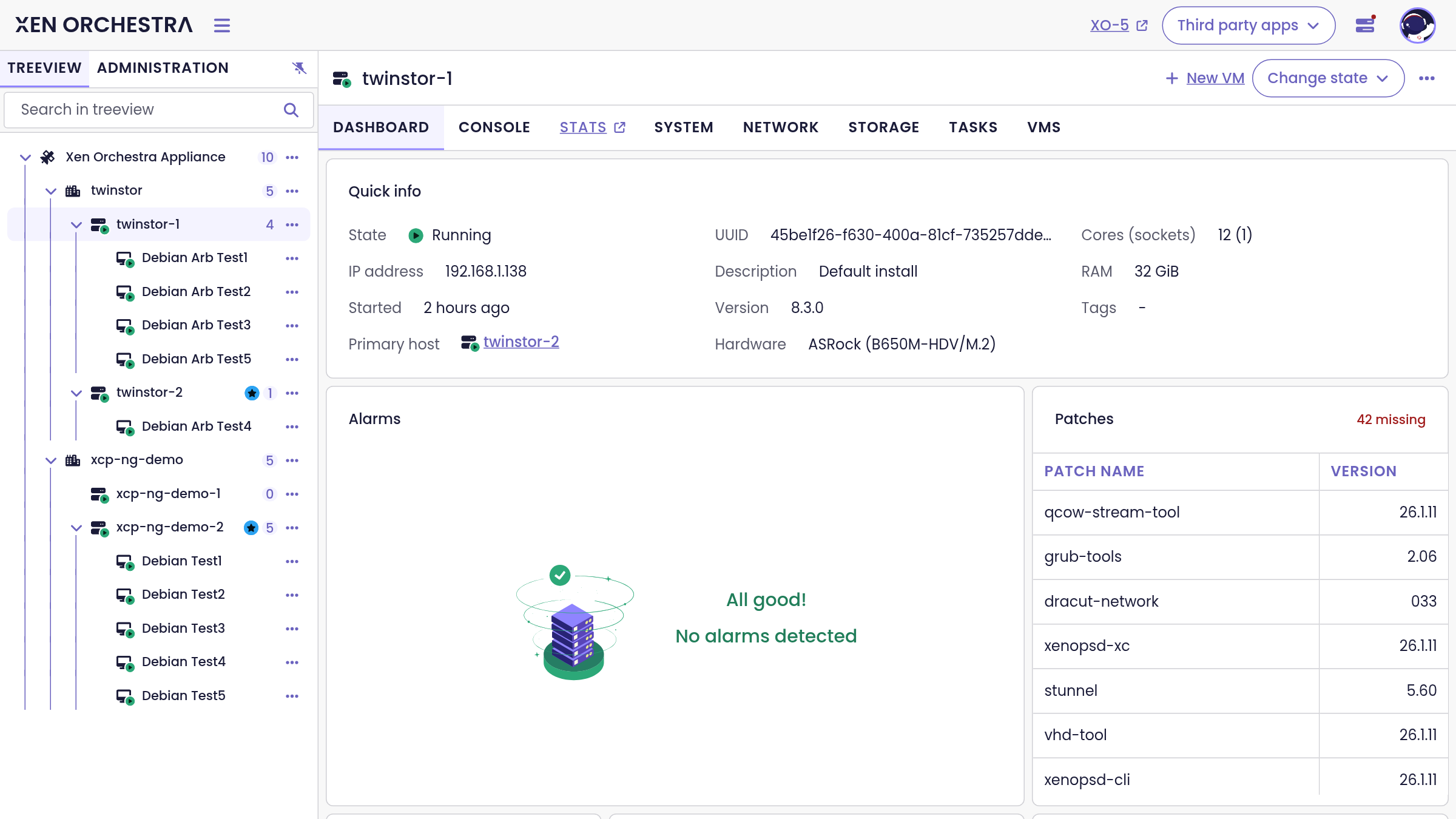
Two host tabs deserve a special mention:
- Console: a live console to the XCP-ng host itself, with fullscreen mode, an option to open it chrome-less in a dedicated tab, and Ctrl+Alt+Del (a console clipboard is visible in the interface but marked coming soon).
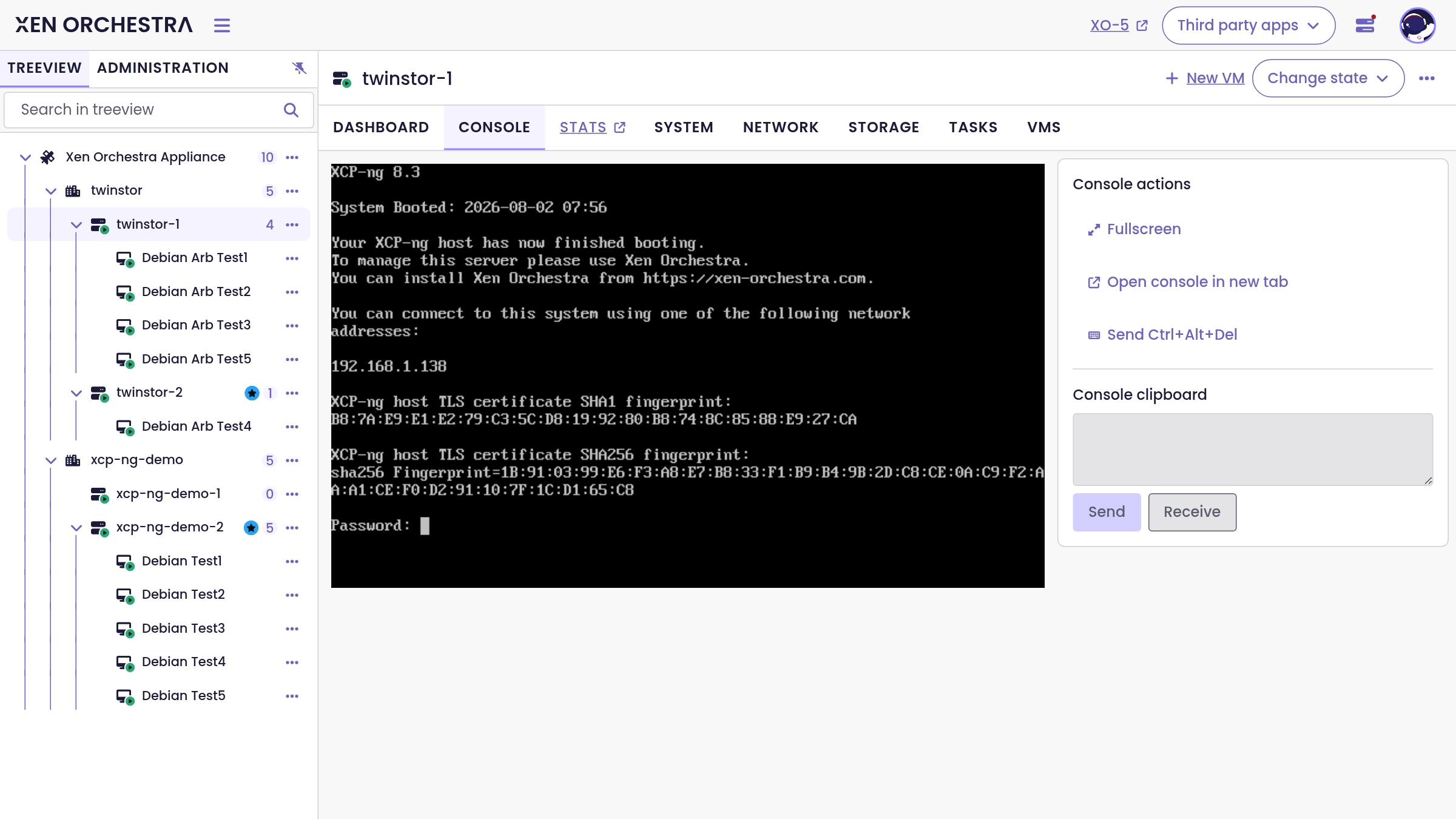
- Change state: host power operations (start, shutdown) from the header of the page, plus enable, disable, PIF scanning and the bug-tools archive download from the host action menus.
The remaining tabs (System, Network, Storage, Tasks, VMs) follow the same patterns as pools.
VMs
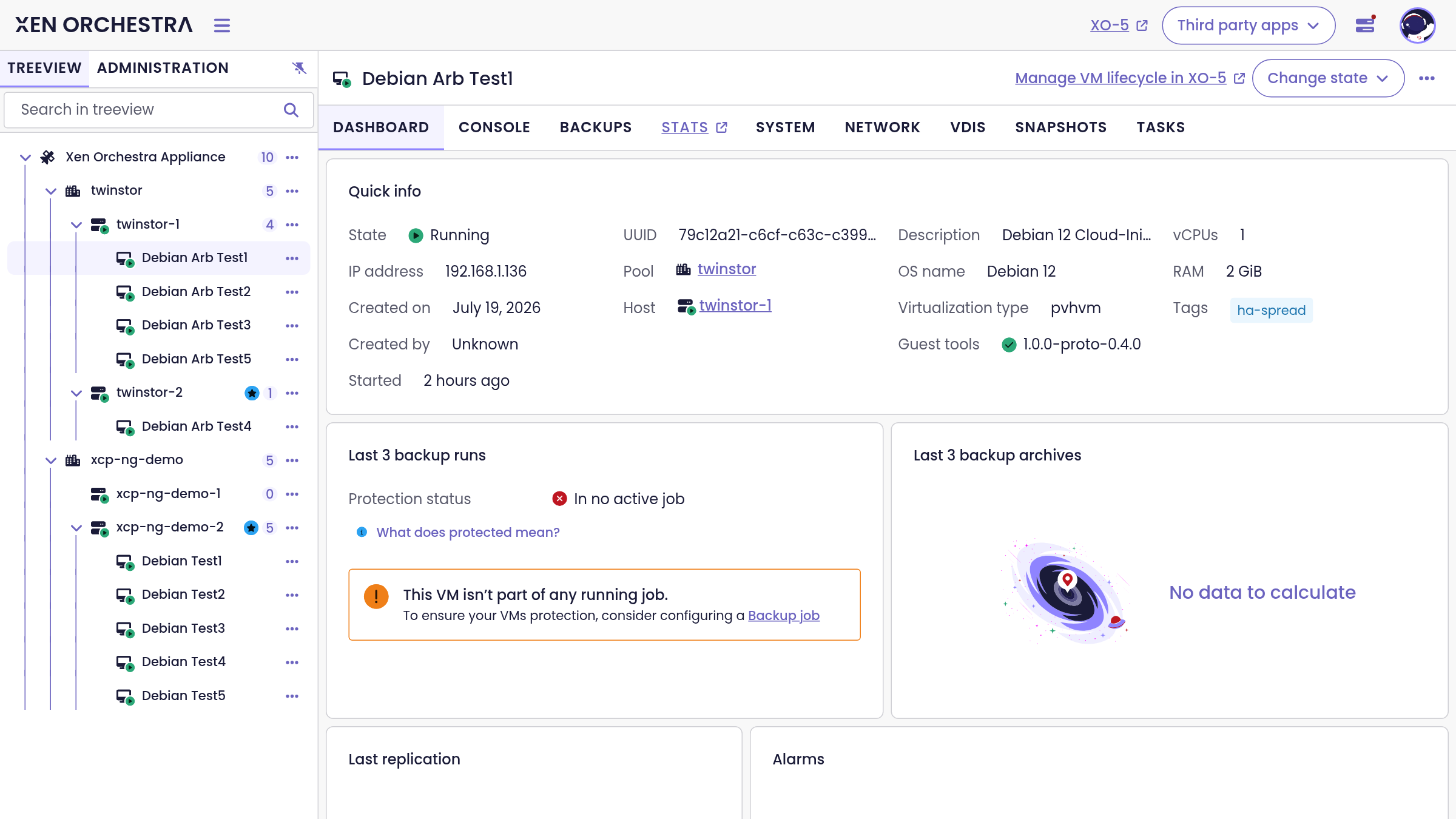
The VM page is where you will spend most of your time. Its dashboard gathers the quick info (state, IP address, OS, vCPUs, RAM, virtualization mode, guest tools version and tags), the last backup runs and the protection status, the last replication, and the VM alarms.
Lifecycle
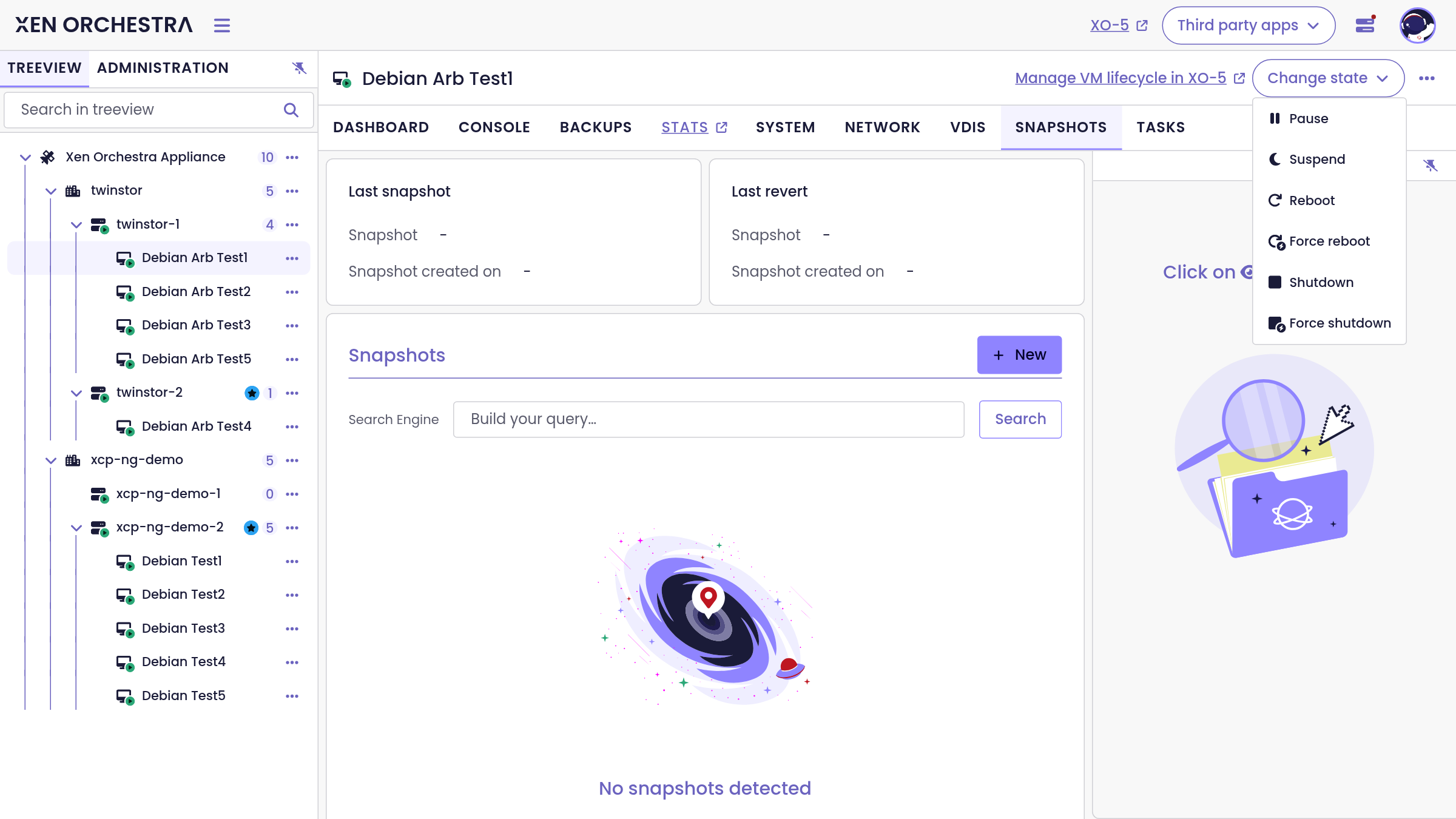
The Change state menu in the header drives the VM lifecycle: pause, suspend, reboot, force reboot, shutdown and force shutdown (and start, or start on a specific host, for a halted VM). The VM action menu goes further: duplicate the VM, export it as XVA or OVA, snapshot it, or delete it.
Console
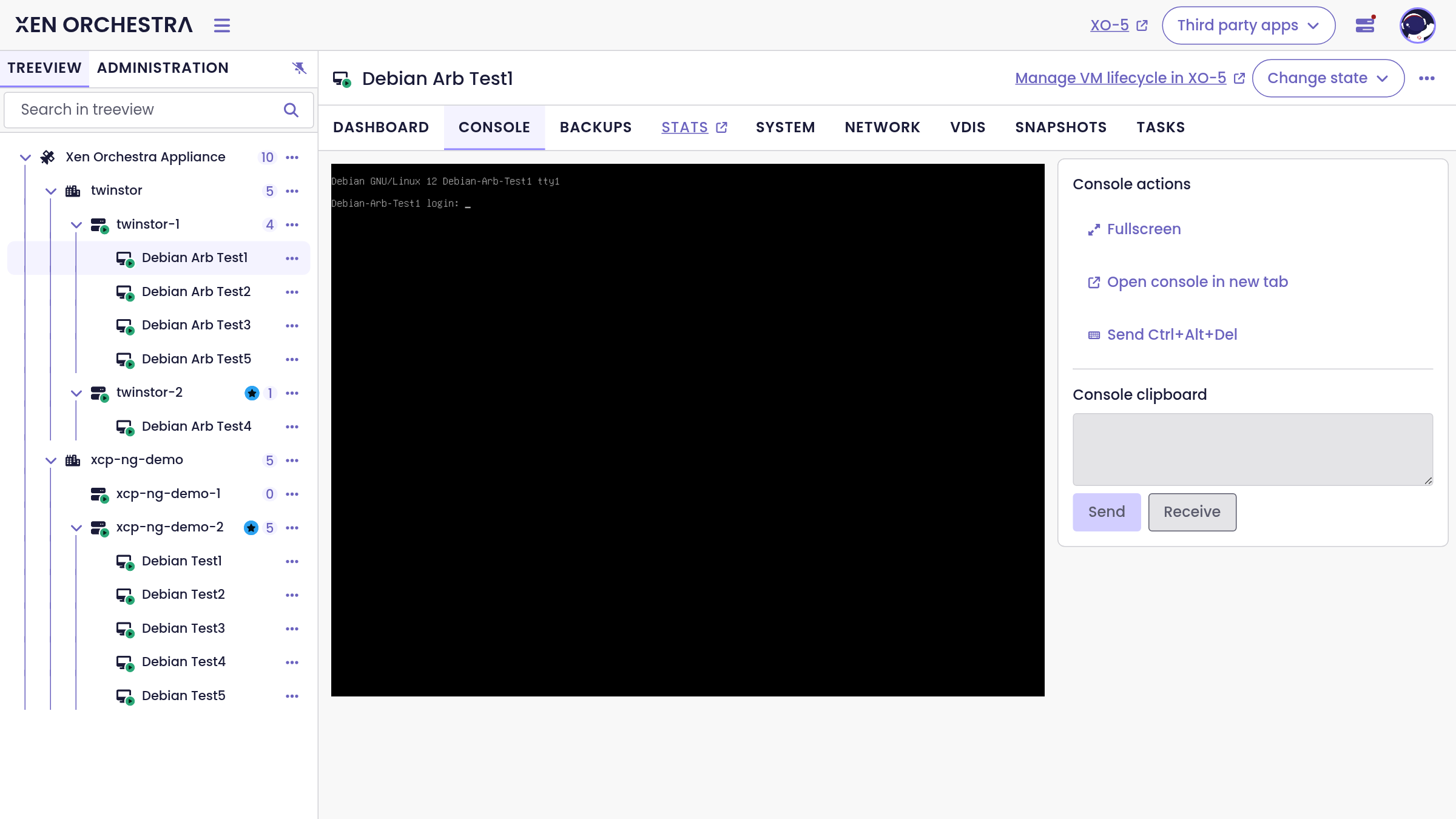
The Console tab is a full VNC console in the browser: fullscreen, open chrome-less in a new tab, and send Ctrl+Alt+Del (a two-way console clipboard is visible in the interface but marked coming soon).
Storage, network and snapshots
- VDIs: the virtual disks of the VM, with real actions: create or attach a disk, connect and disconnect, migrate a VDI to another storage repository, export its content, detach or delete it.
- Network: its virtual interfaces, with connect, disconnect, delete and VIF creation.
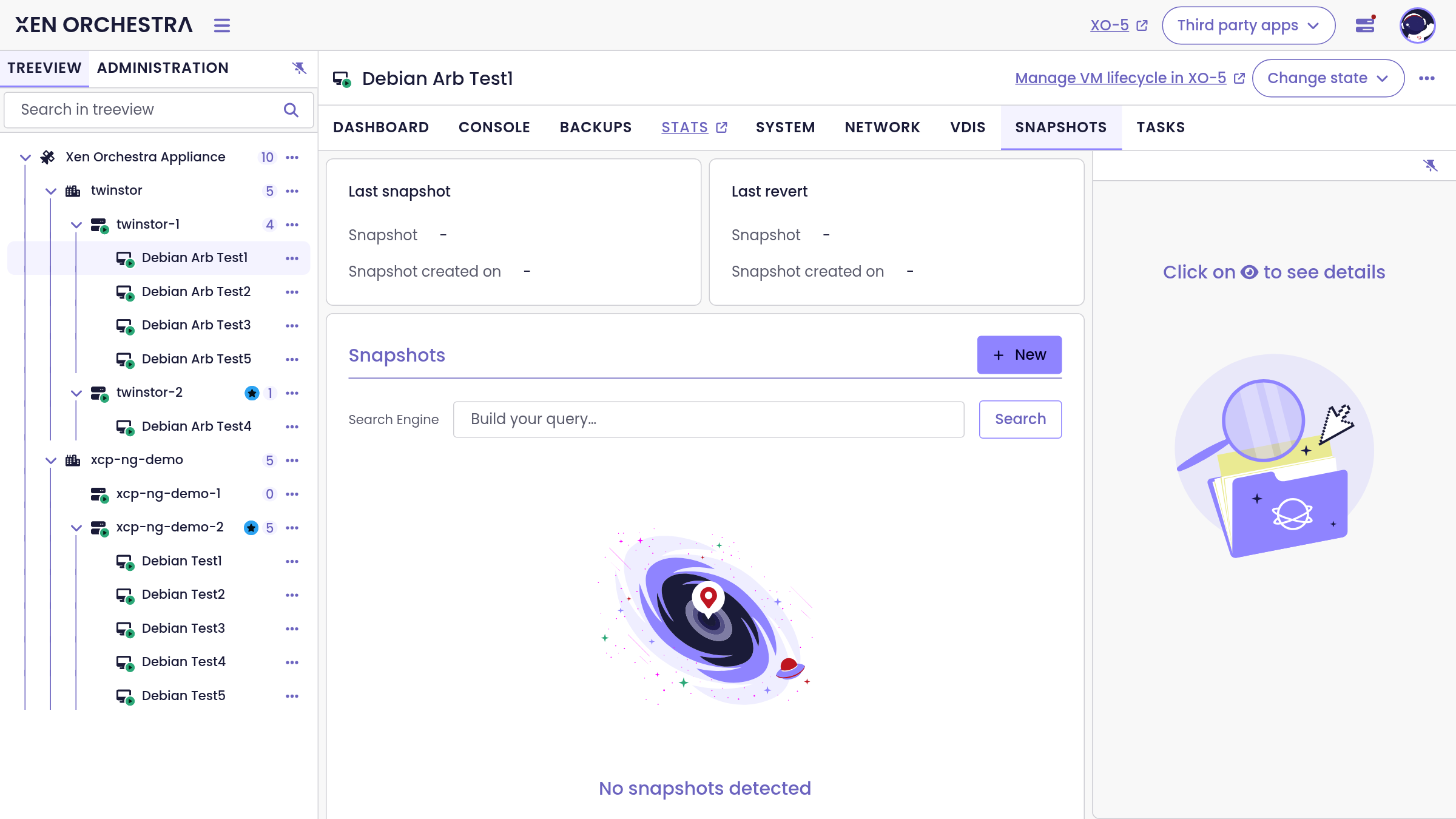
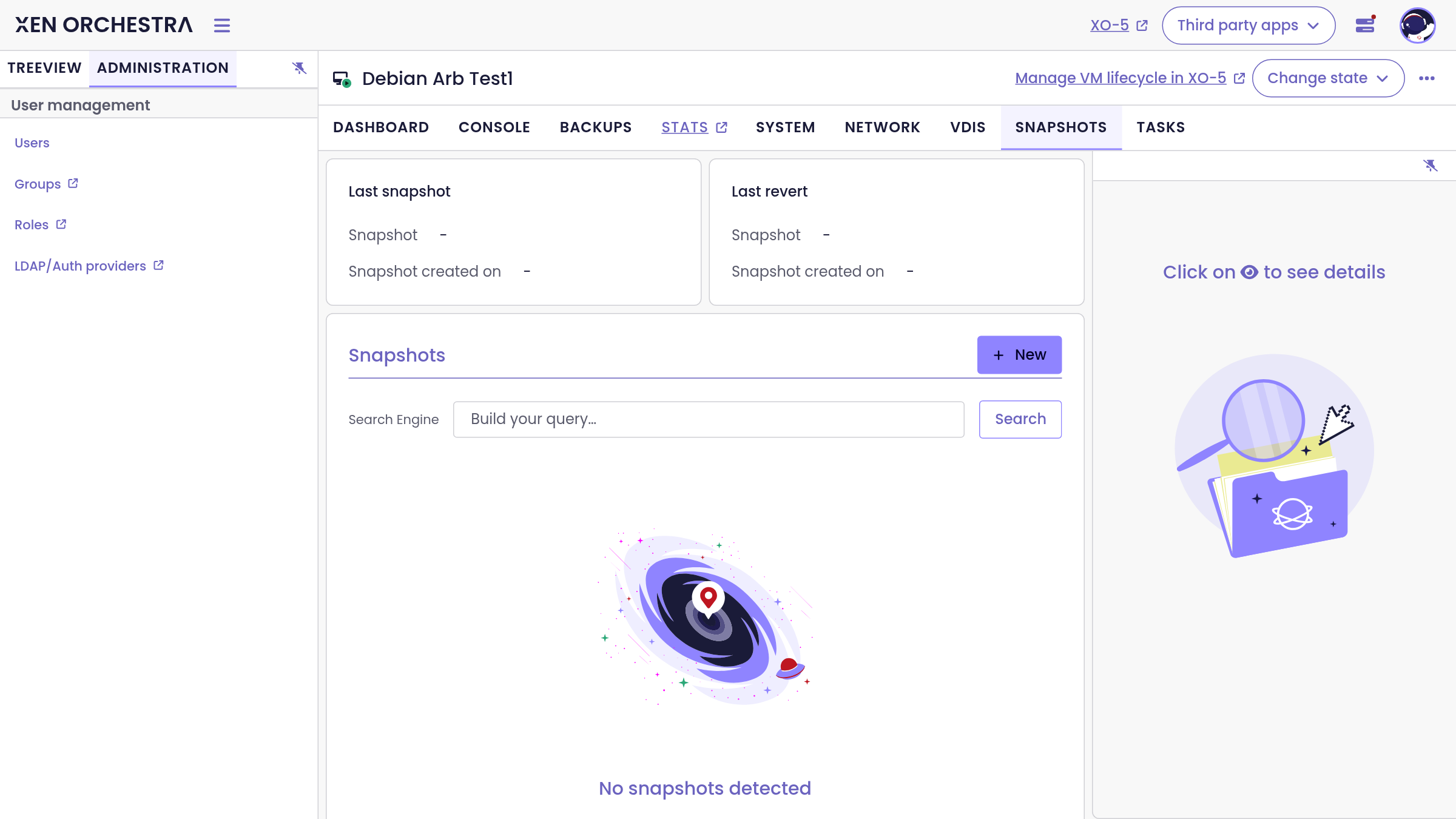
- Snapshots: the snapshot history, with the last snapshot and last revert highlighted. Take a new snapshot, revert the VM to any of them, or delete them, directly from XO 6.
Creating a VM
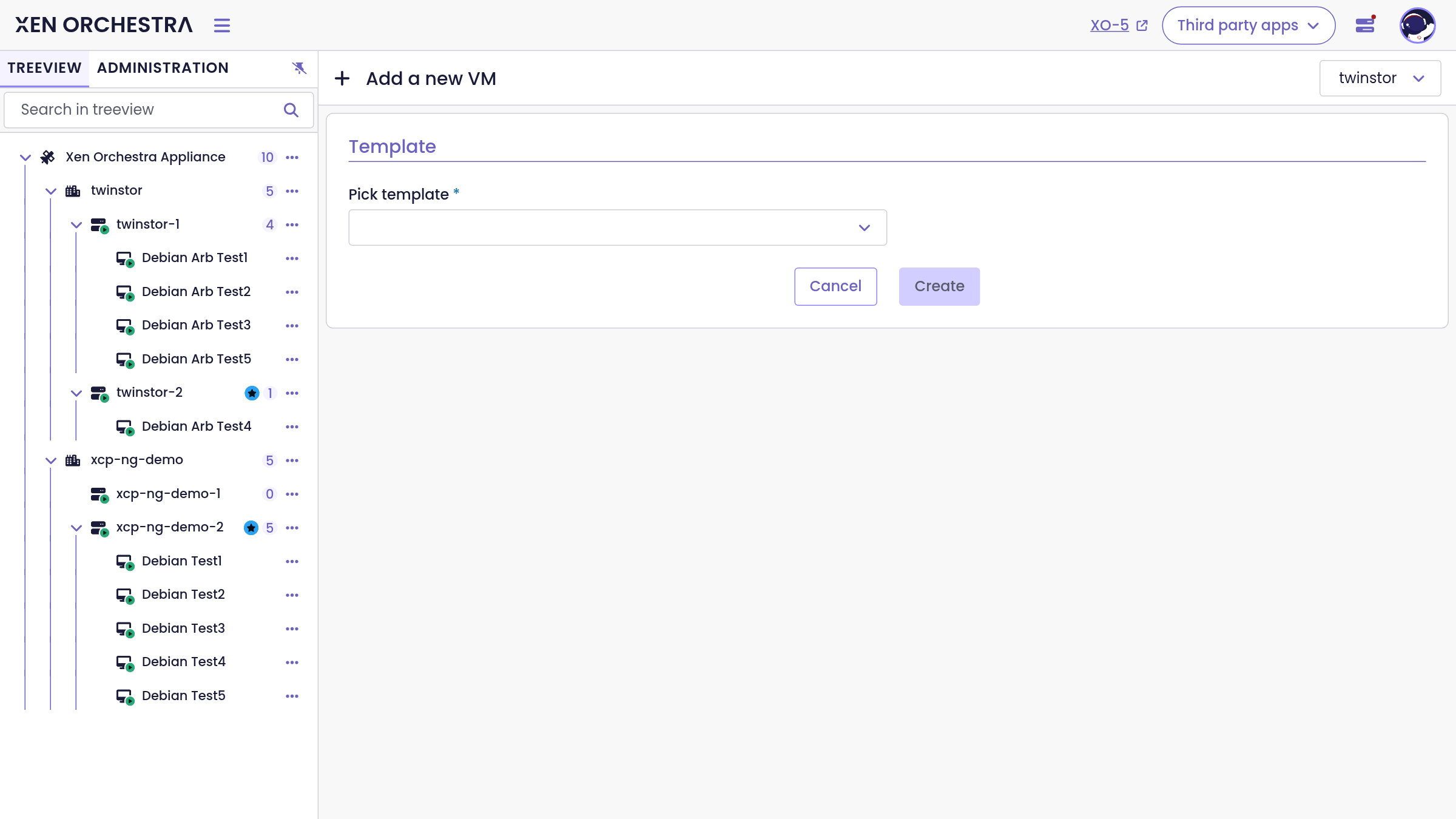
New VM (from a pool, or from the VMs lists) opens the VM creation form. Picking a template unlocks the full form: install settings (SSH key, cloud-init user and network config, ISO, PXE), name and description, boot firmware with vTPM and Secure Boot options, affinity host, high availability, vCPUs and RAM, network interfaces and disks, and whether to boot the VM right after creation. Creating several VMs at once is not available yet; for that, use XO 5.
Traffic rules
Traffic rules are the first feature built for XO 6 first: allow or block traffic network-wide or per virtual interface (VIF), from a single place. Typical use case: isolating VMs that share a subnet or a VLAN, without touching anything inside the guests.
They live in two places:
- Pool → Security tab: every traffic rule of the pool, across all its networks and VIFs, in one consolidated view.
- VIF → Traffic rules tab: the rules of one specific interface (also reachable from the VIF column in the VM Network tab).
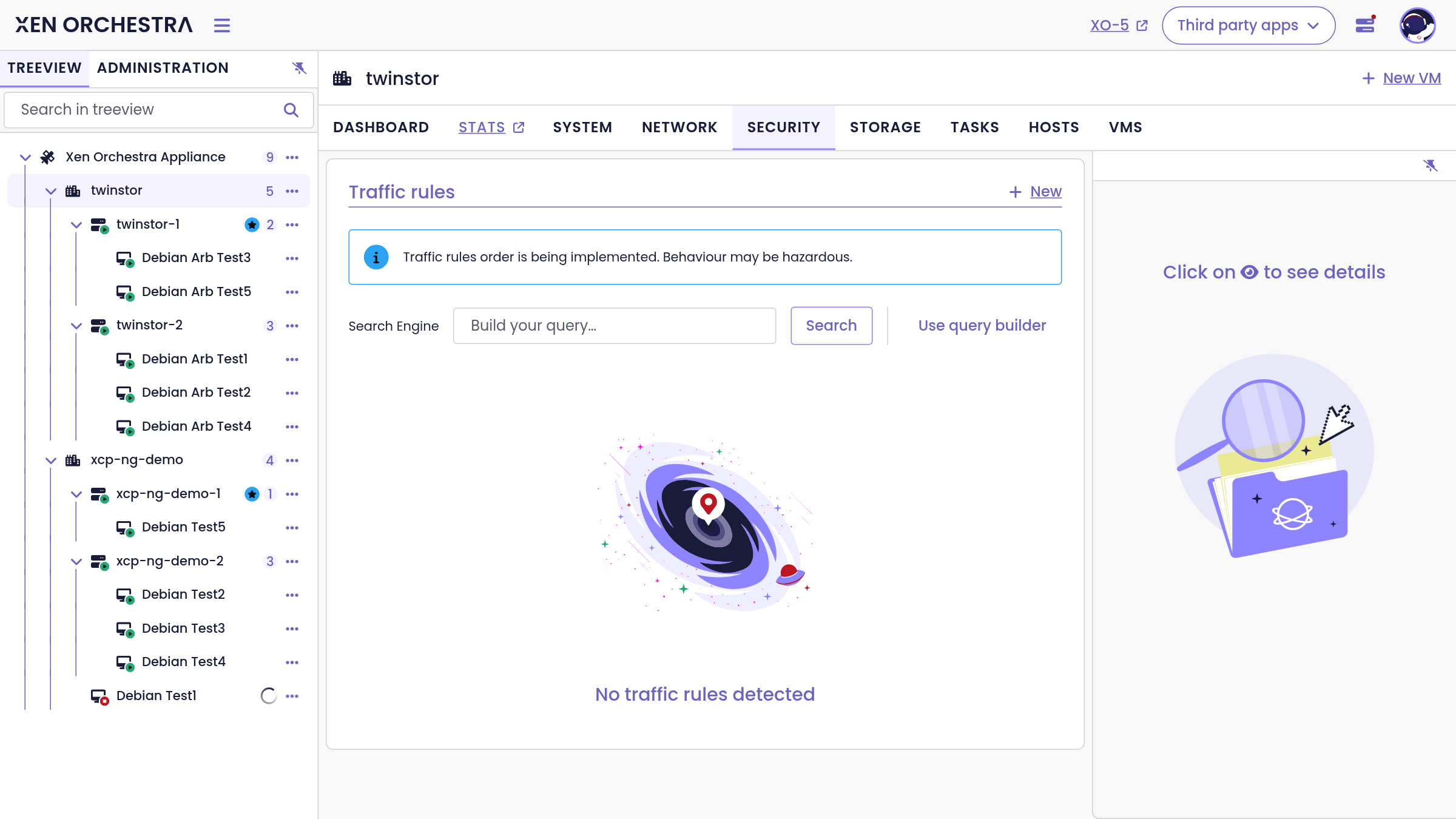
A rule is simple to express: allow or block, a protocol (ARP, ICMP, IP, TCP or UDP), a port for TCP/UDP, an IP address or a CIDR subnet, a direction (from, to, or both), and the object it applies to: a whole network, or a single VIF.
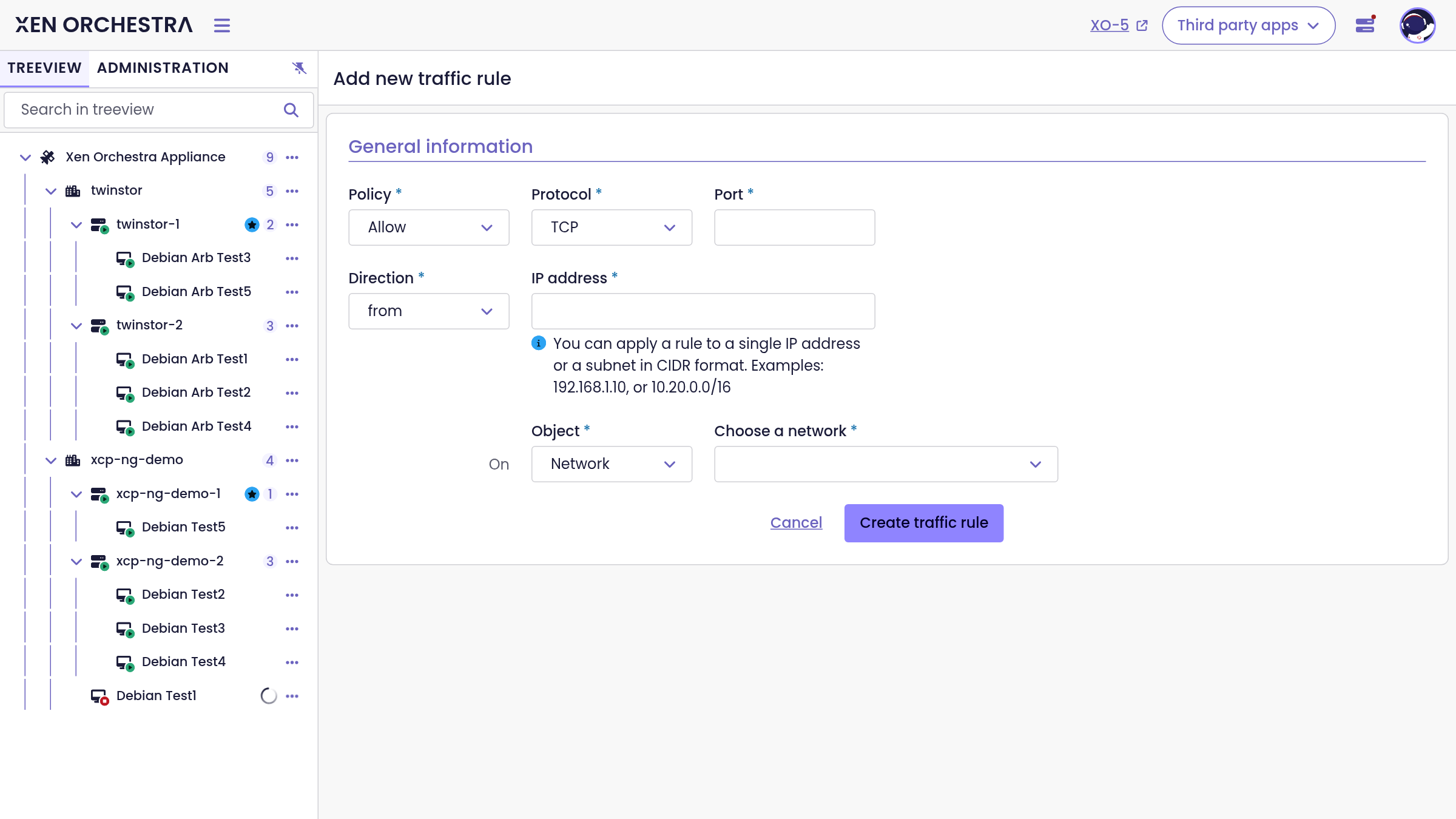
Traffic rules are enforced by the SDN Controller plugin: it must be loaded, and switched to the XAPI plugin mode (useDirectChannel = false). XO 6 shows a notification guiding you through the switch, and a migration script converts existing rules.
Everything is also available through the REST API, where rules can additionally be updated in place, making network policies easy to automate.
Users and administration
The Administration tab of the sidebar covers who can access your Xen Orchestra. Users are listed in XO 6 with their details, groups and authentication tokens (creating and editing users still happens in XO 5); Groups, Roles and LDAP or other authentication providers open their XO 5 configuration pages.
For the permission model itself (roles, scopes and delegation), see RBAC.